Create, manage and tag prompts
Last updated: June 13, 2026
Prompts are the queries that Profound sends to answer engines to create your Profound dataset. The data presented in Answer Engine Insights is the direct result of prompts, so it is important to closely maintain your prompts.
You can create, modify, tag and manage prompts from the Prompt Designer. To access the Prompt Designer, go to Prompts tab or Answer Engine Insights Settings and select the Modify Prompts button.
If you don't see the Modify Prompts, your access needs to be updated to Admin in Profound.
The Prompt Designer lists topics and prompts, and has filters to easily navigate these lists.
Create prompts
There are three ways to add prompts to Profound: bulk upload, generation, and manual addition.
New prompts typically need 24-48 hours to accumulate data after being added. Prompts refresh once per day on EST, so you should expect to see initial visibility data in Answer Engine Insights after the next daily processing cycle completes.
Bulk upload
You can upload a CSV file containing many prompts. To upload a CSV, select the Bulk upload button on the top right of the prompts table. This action loads an upload window, where you can drag your CSV into the upload window, or click the Upload file button to select the file from your computer.
The CSV needs to be structured correctly in order for the upload to process. The CSV should have the following columns:
Required Columns
Topic - Key concept or area of focus that you want to rank for in AI Answers.
Prompt - An individual query to be sent to AI Answer Engines.
Optional Columns
Tags - One or more tags to assign to the prompt for filtering within the platform.
Regions - One or more regions where the prompt should be run.
Language - A two-letter language code followed by a two-letter country code (en-US).
Download the template prompts table with all necessary columns from the same window.
CSV Upload Troubleshooting
If you receive a "Topic and Prompt missing" error during bulk upload, verify that your CSV has data properly separated into columns rather than all combined in a single column. Open the file in Excel or Google Sheets to check the column structure. This error typically occurs when spreadsheet applications don’t properly recognize the CSV delimiter or when the file was exported with incorrect formatting.
Each field (Topic, Prompt, Tags, etc.) should appear in its own column
If all data appears in one column, use "Split text to columns" with comma as the delimiter
Alternatively, re‑save the file ensuring it uses proper comma delimiters between fields
Prompt Generation
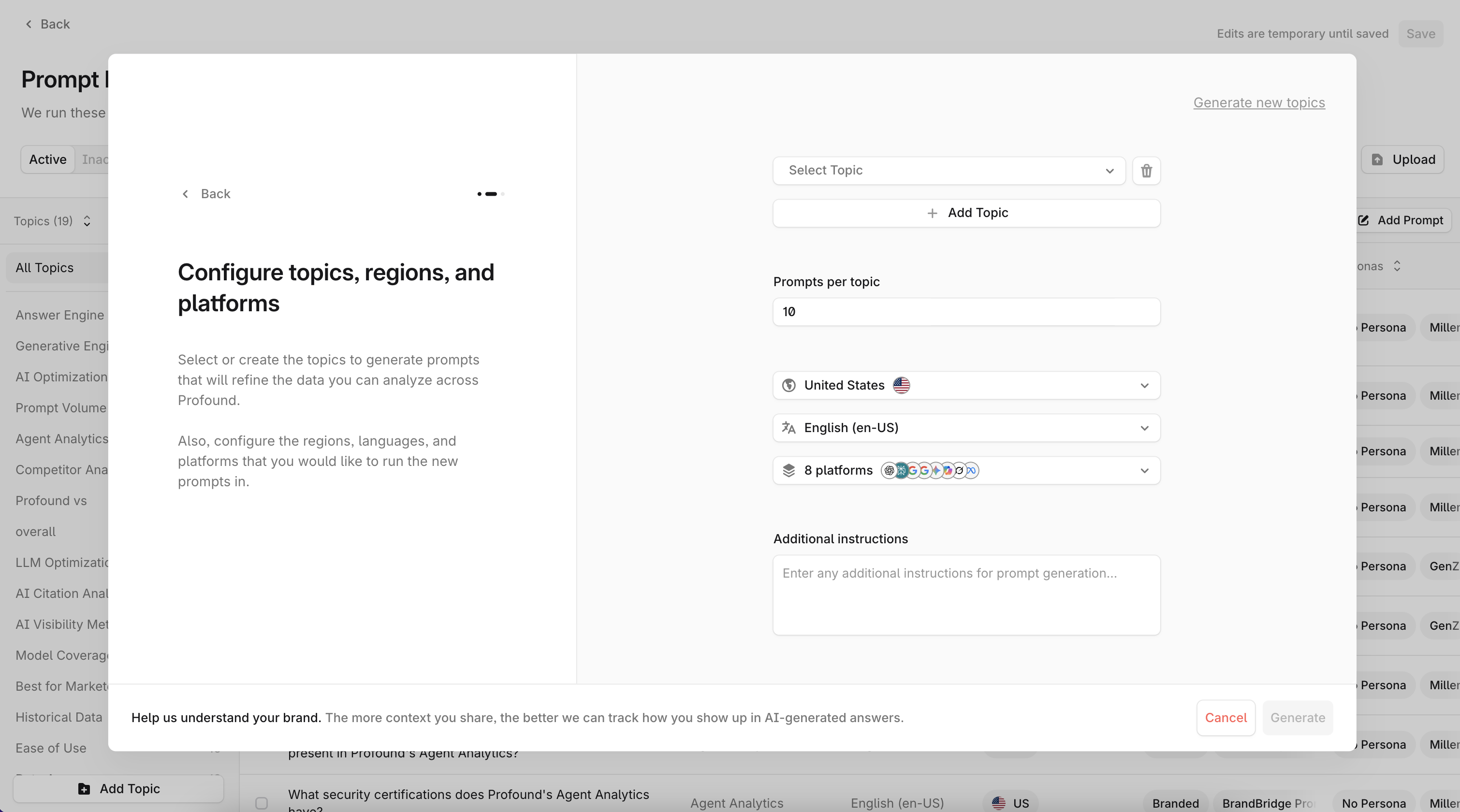
You can use the Prompt Generator to generate collections of Prompts based on existing Topics. Select the Generate button on the right-side of the top navigation bar to access the Prompt Generator.
From the generator, you must specify the topics that you want to create prompts for. You also must configure the regions, languages, and platforms for prompt delivery to answer engines. Lastly, you can specify any additional directions for the prompt generator in the Additional Instructions section.
Manual Addition
You can also create the exact prompts from the Prompt Designer. Click the Add Prompt button below the top navigation bar.
This tool allows you to specify the exact string that will be sent to answer engines.
Modify Prompts
You can modify any existing prompt within the Prompt Designer. Prompts are organized and displayed in a table format. To edit a prompt, click the cell containing the data you want to update.
Tag Prompts
In addition to topics, prompt tags create an additional layer of organization. For example, you can filter chart data in Answer Engine Insights by tag, creating a data view specific to the filtered tag.
Click the table cell that contains the tags for a given prompt to add or remove tags for that prompt.
Alternatively, you can include a “Tags” column as a part of a CSV bulk upload.
Topics
Topics are collections of prompts grouped by a common theme. For example, a collection of different prompts all inquiring about data accuracy can be organized within a “Data Accuracy” topic.
Topics group related questions into broader, strategic topics rather than tracking individual keywords. Each topic should represent a clear business theme.
Add New Topics
To manually add a new topic:
Go to Answer Engine Insights and select the Prompts tab
Click the Modify Prompts button to open the Prompt Designer
At the bottom of the left All Topics panel, click the +Add Topic button
Enter your topic name and configure any additional settings
Export Prompts and Topics
You can export prompts and topics from the Prompts tab within Answer Engine Insights.
Exports support both JSON and CSV formats.
Export Prompts
You can export prompts by selecting the download icon on the top of the prompts table. To export the full list of prompts, select a time period and ensure that no Group By filter is applied.
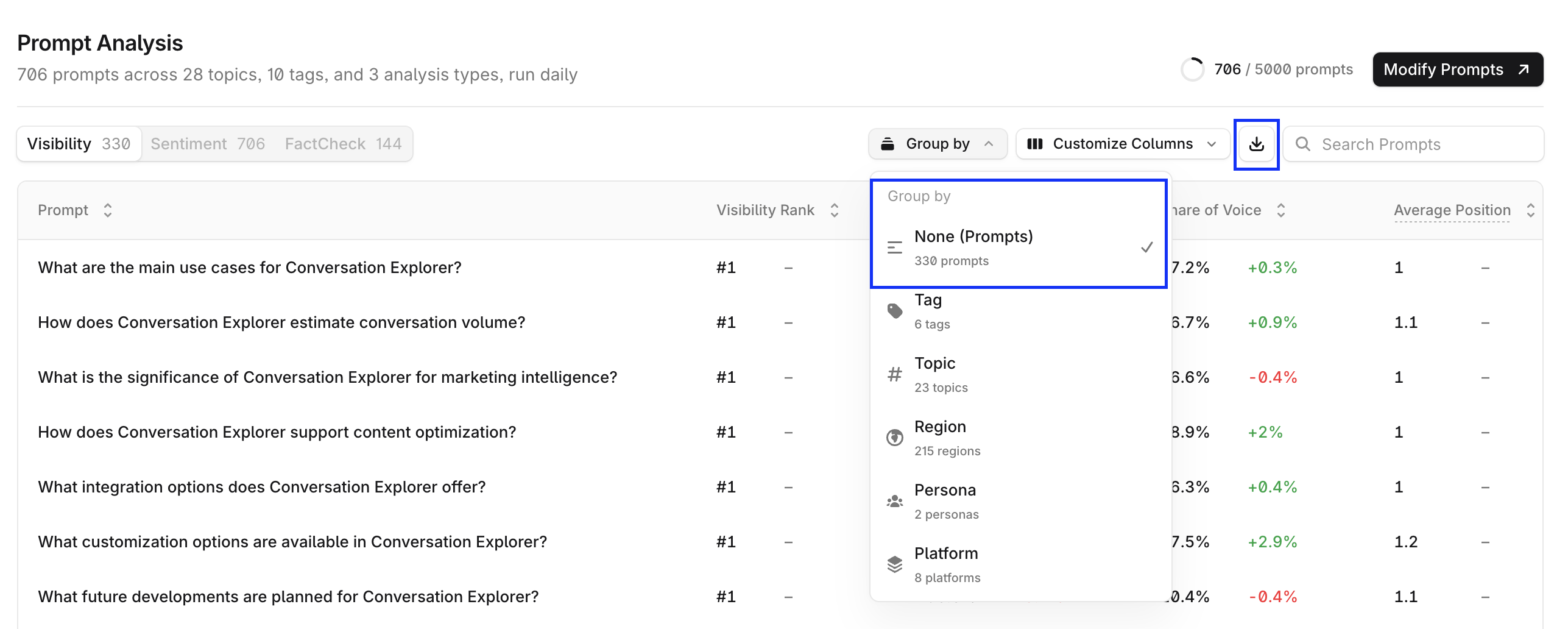
Exports include the prompts you are tracking along with their corresponding KPI performance.
Prompt export fields include:
Prompt
Topic
Tags
Visibility
Average Position
Citation Share
Citation Ranks
Executions
Export Topics
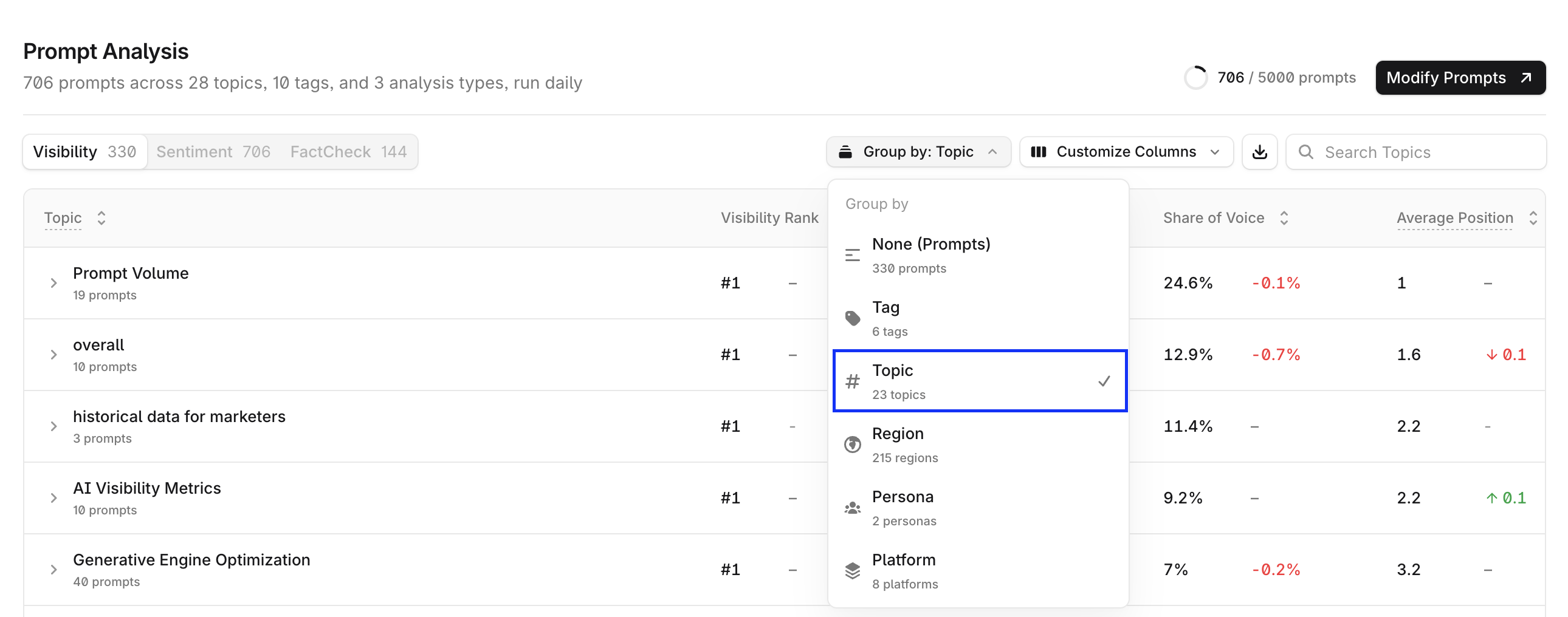
You can export topics by clicking the same download icon, and applying the topic grouping by using the Group By filter.
Feed your prompts table directly to your Agents by exporting them to Profound Sheets. To learn more about Sheets, see the 📄 Getting started with Sheets section.