Create and Optimize Content
Last updated: June 6, 2026
This article is legacy. Content is moving to the Agents tab. All existing functionality and previously created content will remain accessible, but new users should use Agents instead.
You can create or optimize content from the Content section. All content tools generate or modify content based on your brand’s presence in AI answer engines. Read more about how Profound's Content section works here.
Create Content
You can create new content to host on your domain using Profound’s content creation tool.
You can access the Content section in the left navigation bar. Select “Create New Content” to open the content creation menu.
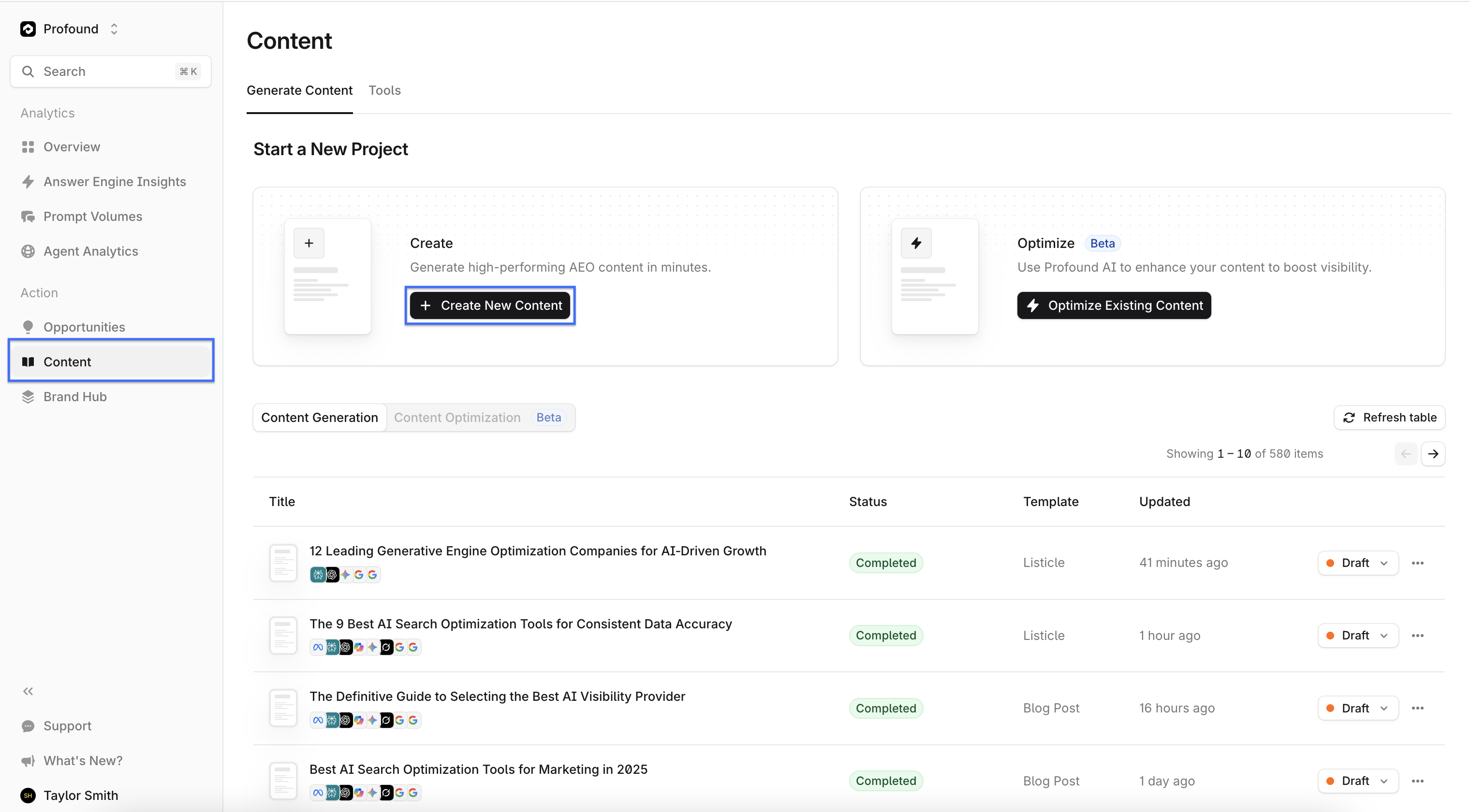
Content Types
Profound can generate different types of content. You can manually select the content type to generate or use Smart Suggestion to determine the content type based on answer engine data.
Content Configuration
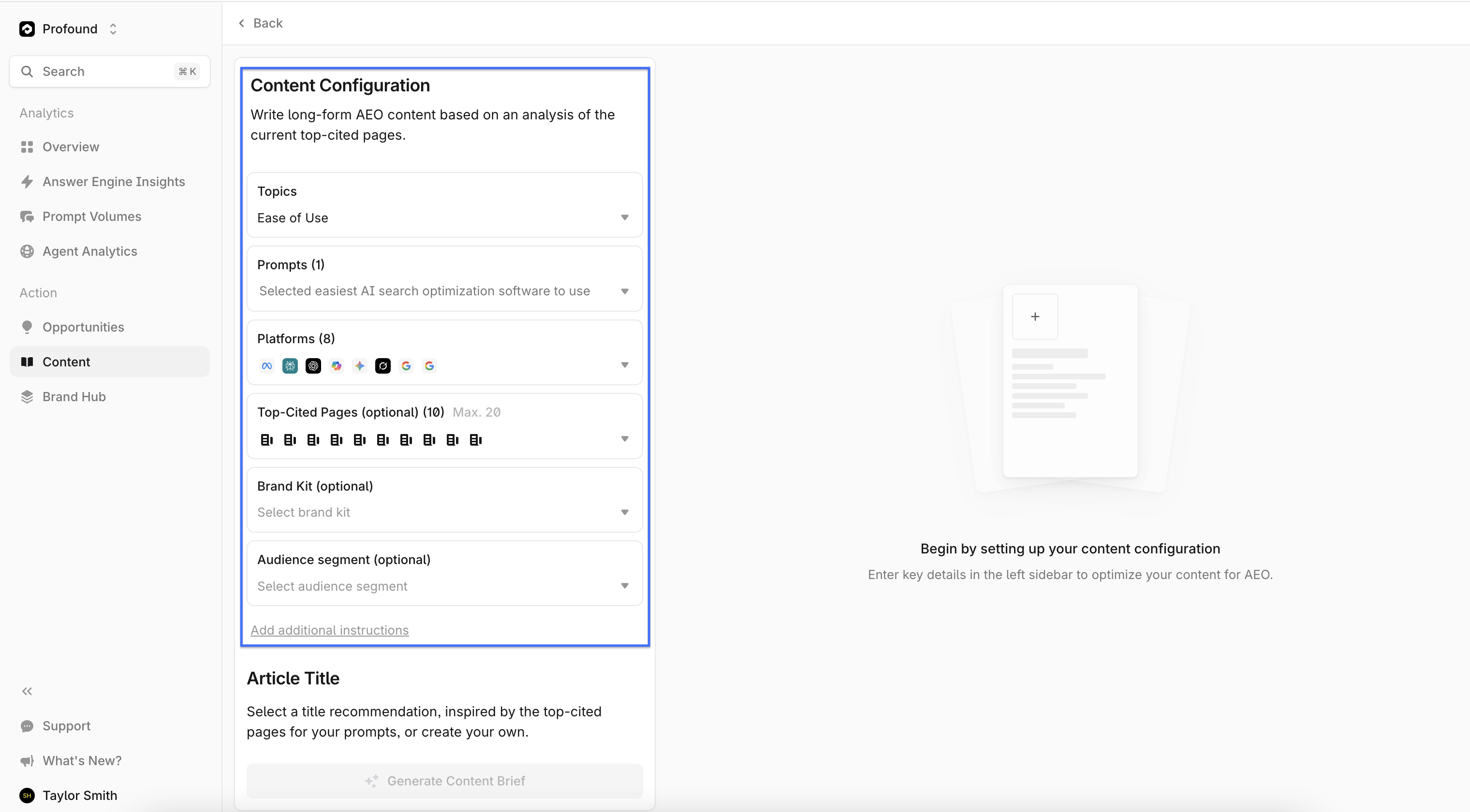
The content configuration allows you to narrow the focus of the generated content. For example, you can configure the tool to create content tailored to a specific audience or to a particular answer engine (such as ChatGPT).
Available configurations include:
Topics – Areas of focus identified through answer engine response analysis
Prompts – Individual queries submitted to an AI answer engine
Platforms – AI answer engine tools (e.g., ChatGPT)
Top Cited Pages – Web pages most frequently cited by answer engines
Brand Kit – An informational profile of your brand
Audience Segment – A filtered group of answer engine users or prompters
To create or edit topics and prompts before using them in content generation, navigate to Answer Engine Insights → Modify Prompts → Prompt Designer. Learn more about managing prompts and topics.
Content Title
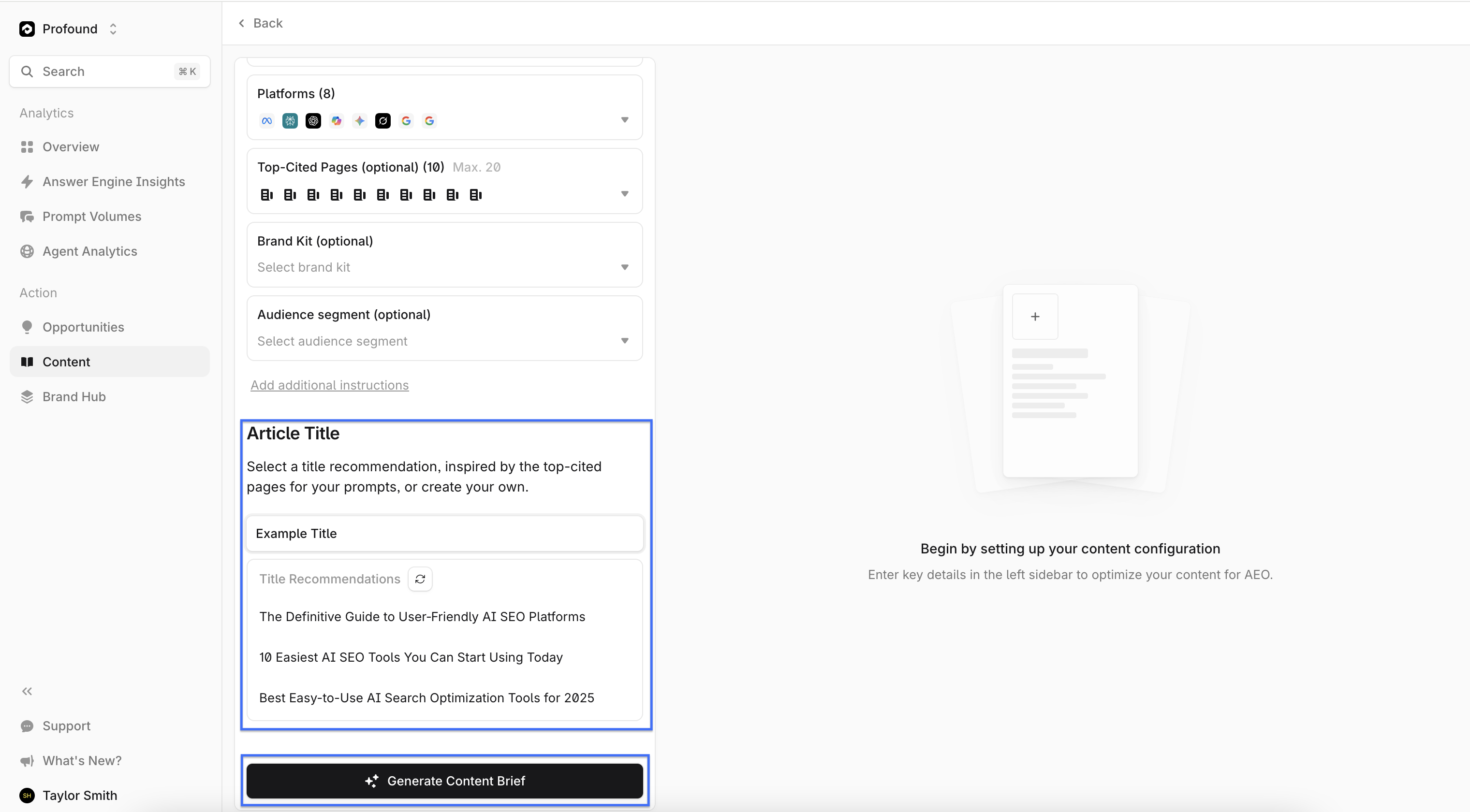
Select a title for the content, or use one of Profound’s suggested titles.
Click Generate Content to create a draft. Content generation can take up to ten minutes.
Edit Generated Content
Profound creates a content brief for review after you run a content generation. Several tools within the platform allow you to refine your content before exporting and hosting it.
Content Editor
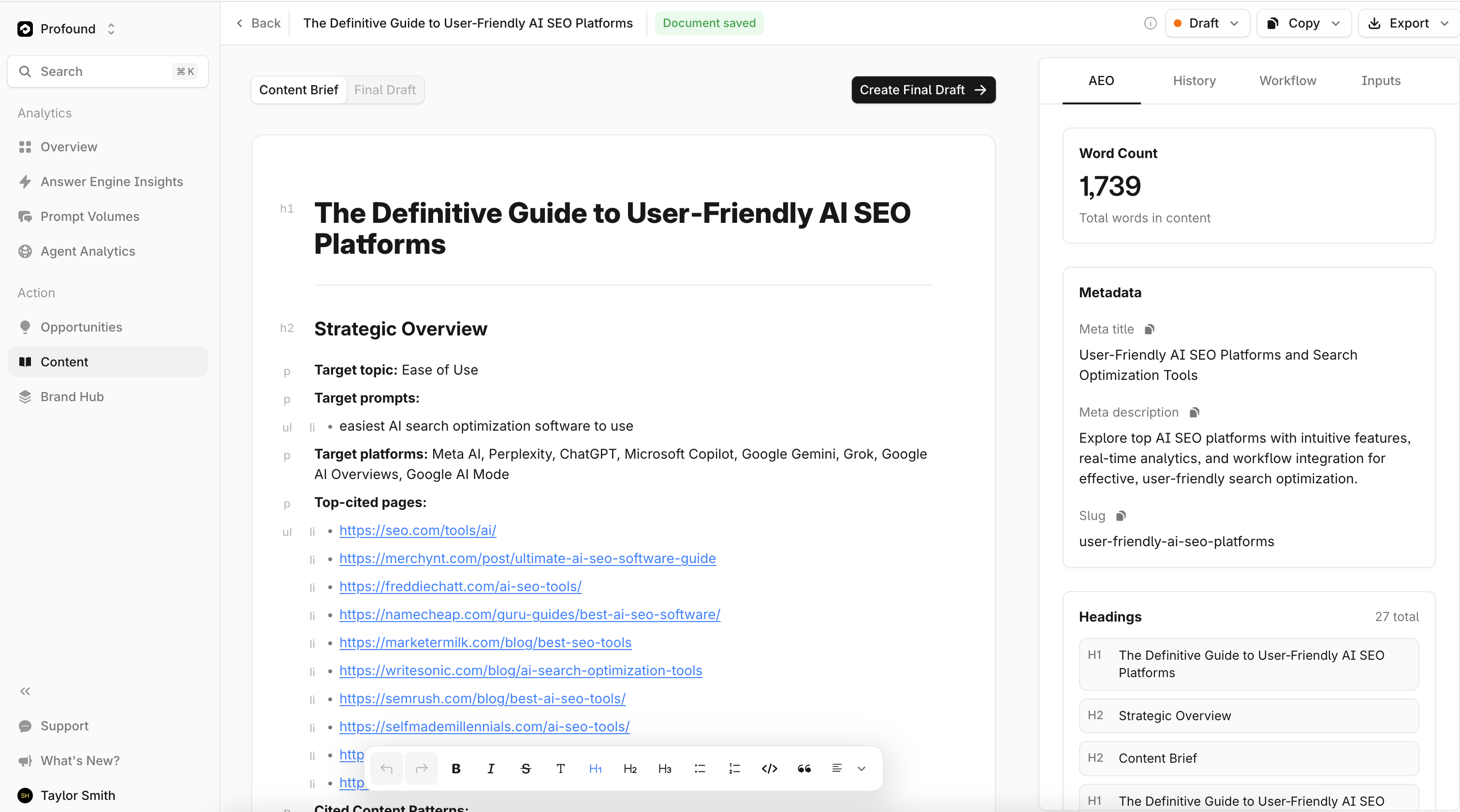
You can edit content directly within the Profound platform. After generating content, you’ll be redirected to the text editor. Access text editing tools (such as font type, bulleted lists, and formatting options) from the menu at the bottom of your new content.
Use the cursor to select existing text or type to add new content.
AEO
The AEO section provides a summary of the generated content, highlighting attributes that affect how it appears across answer engines.
From here, you can track total word count, metadata, headings, paragraph count, and overall content structure.
History
The History section tracks all changes made to the document and maintains a version history.
This allows you to review edits and revert to previous versions if needed.
Workflows
The Workflows section within the content generation tool outlines the steps required to create the content. This includes steps related to answer engine data analysis as well as the actual content generation process.
Inputs
The Inputs section summarizes the inputs used to generate the content brief. It allows you to review and verify configuration details before proceeding.
Create Final Draft
Click "Create Final Draft" to create a final version.
Optimize Content
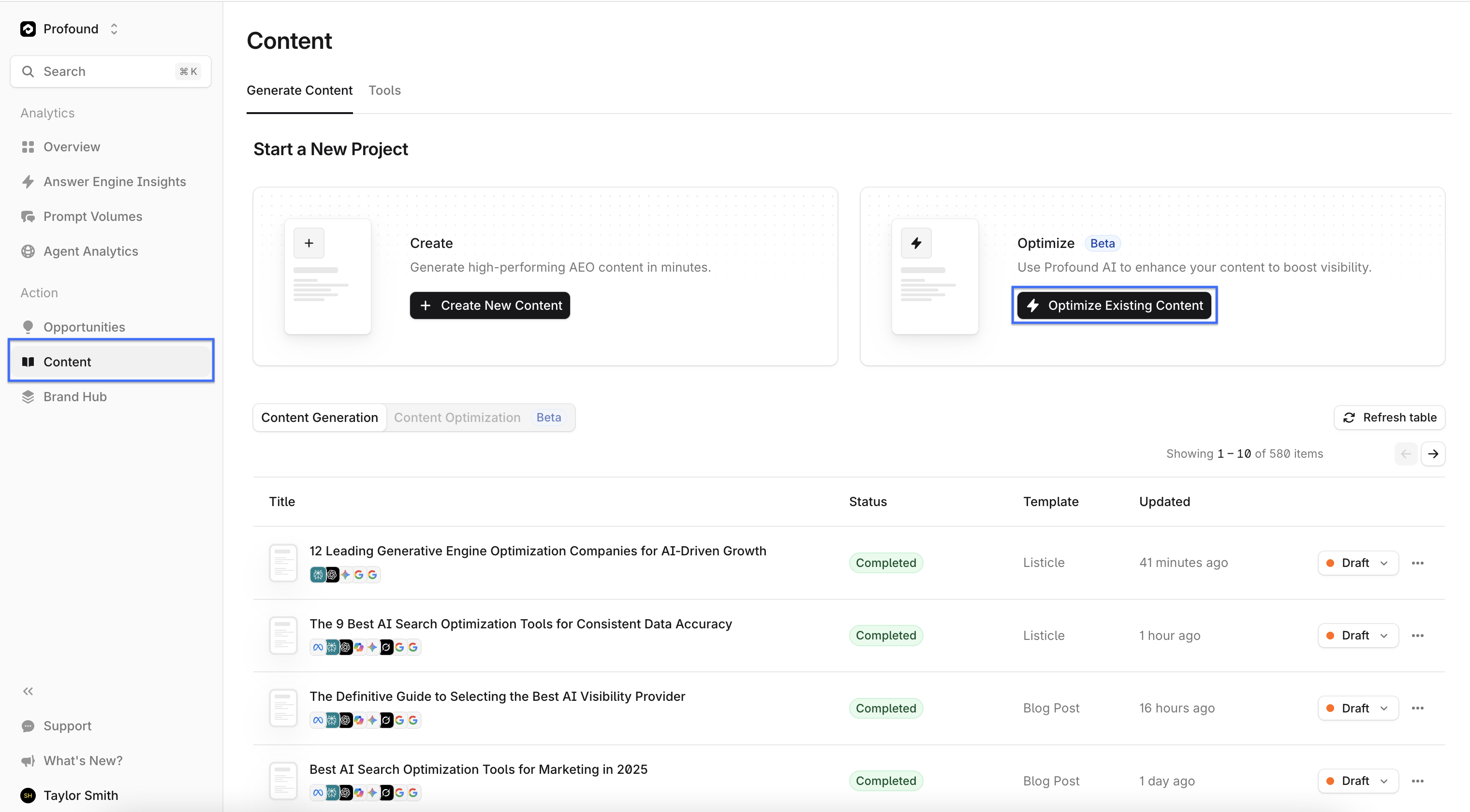
You can optimize existing content hosted on your domain using Profound’s content optimization tool.
You can access the Content section in the left navigation bar. Select “Optimize New Content” to open the content optimization menu.
Select Content to Optimize
From the content optimization menu, paste the URL of your hosted content into the URL of the Content field. This directs Profound to your content, allowing the optimization tool to extract and analyze it.
Content Optimization Configuration
The content configuration allows you to narrow the focus of content optimizations according to a subset of specific prompts or topics.
Available configurations include:
Topics – Areas of focus identified through answer engine response analysis
Prompts – Individual queries submitted to an AI answer engine
Analysis
The Analysis section provides an AEO content score, along with a breakdown of key content attributes such as readability and structure.
Recommendations
The Recommendations section offers actionable suggestions for improving your content. Profound generates recommendations designed to have a measurable positive impact on specific content attributes. For example, it may suggest copy changes to enhance the readability of the document.
Export Content
You can export content after you have established a final draft. You can select and initiate the export by selecting a file type from the “export” dropdown.
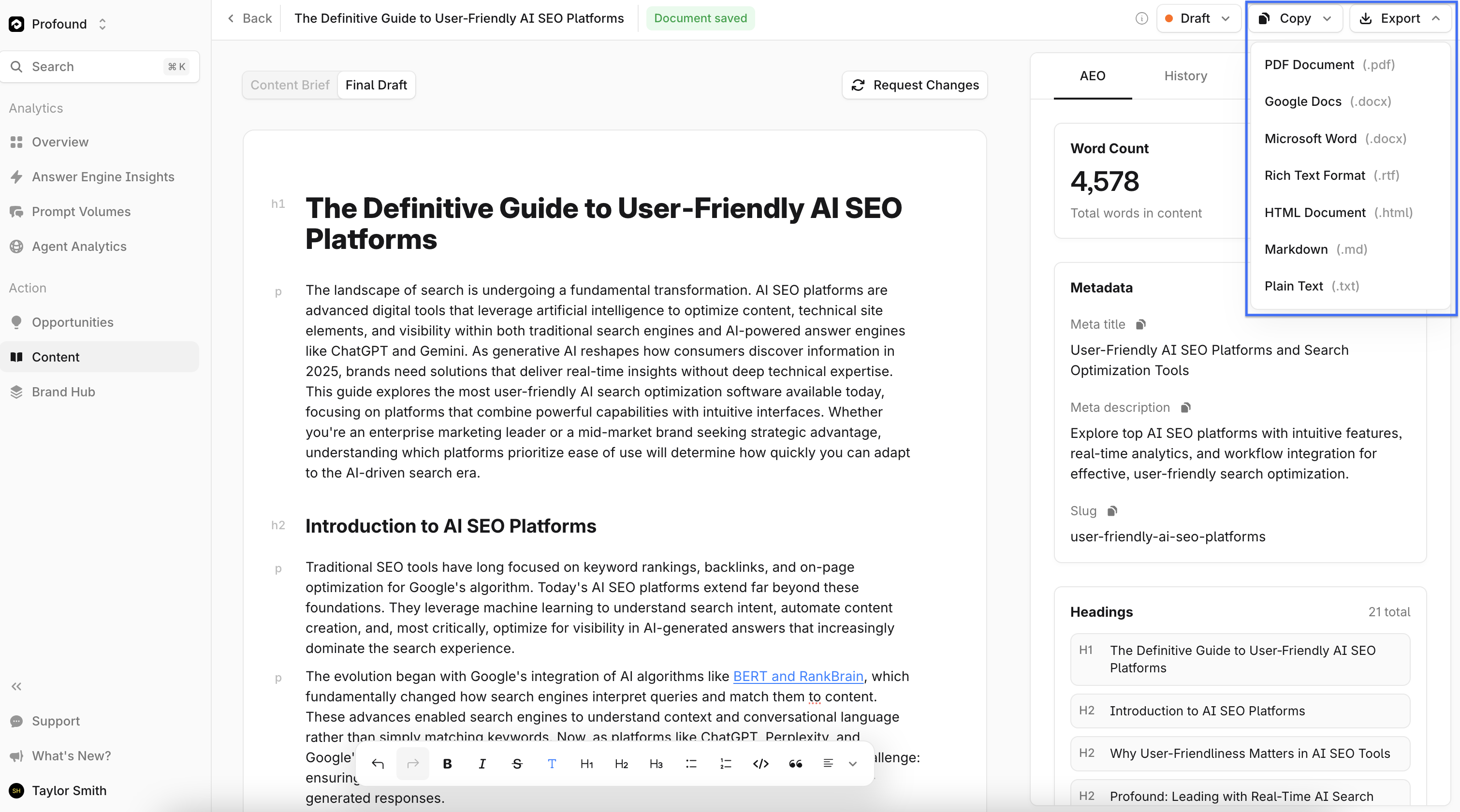
Profound currently supports the following file types for export:
PDF (.pdf)
Google Doc (.docx)
Microsoft Word (.docx)
Rich Text Format (.rtf)
HTML (.html)
Markdown (.md)
Plain Text (.txt)