Analyze Prompt Volumes
Last updated: December 17, 2025
Submitting a keyword query, or selecting a keyword from a list, will redirect you to the corresponding results within the Prompt Volumes dataset. From there, you can review several charts and tables that illustrate how frequently your keywords appear across different answer engine platforms. These visualizations are organized into the following tabs:
Filters
Filters are available across Prompt Volumes. They allow you to adjust the analytical time frame, narrow the data view, and apply groupings. Filters appear as dropdown menus located beneath the top navigation bar.
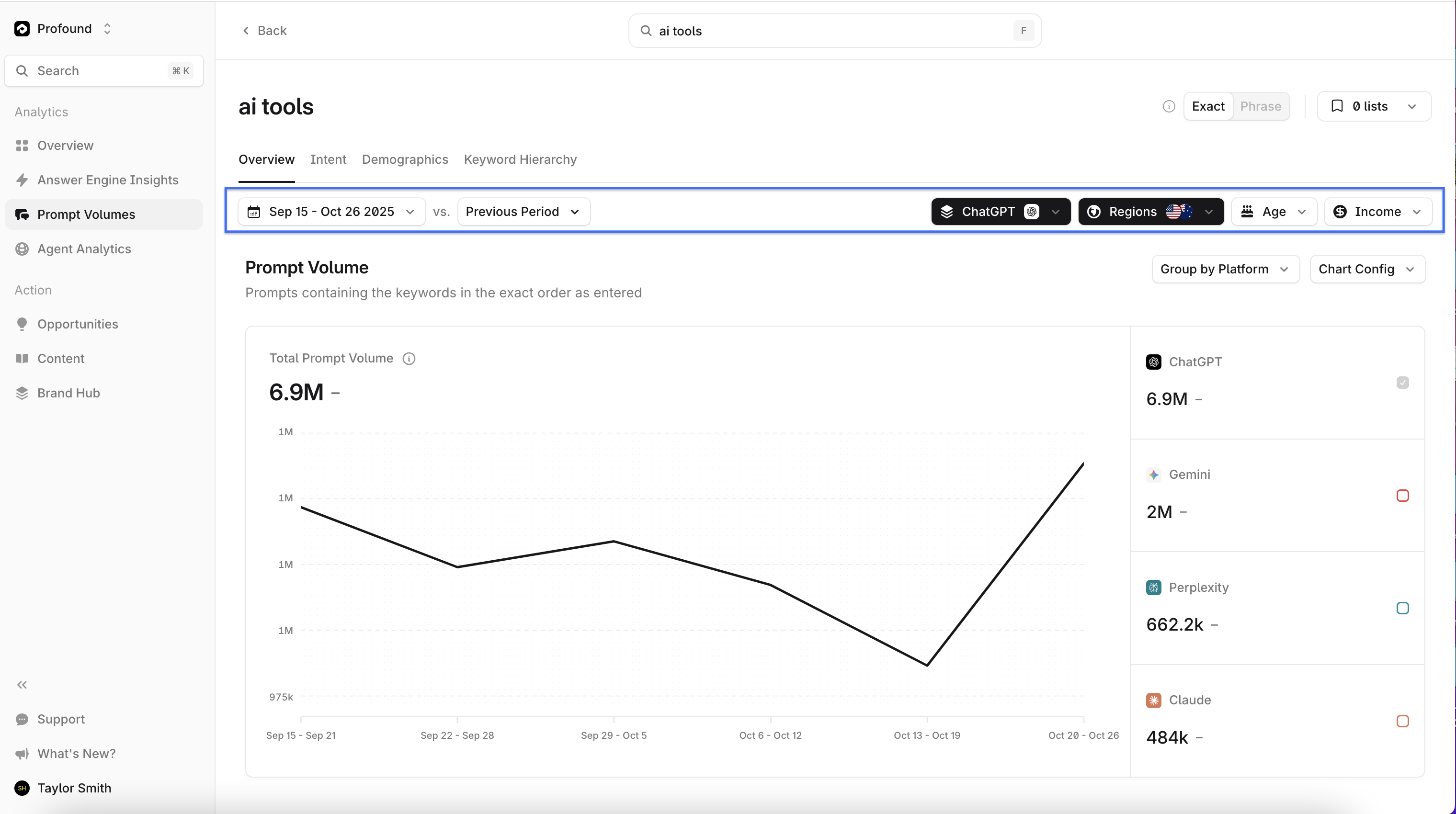
Date Range Filter
Use the date range filter to select the time window of the answer engine response collection. You can choose a preset window (such as the previous 7 days) or define a custom range using the calendar cursor.
After selecting a time frame, only answer engine responses generated during that period will appear in the Answer Engine Insights charts.
Charts display differences by calculating the change between the selected time frame and a previous period. You can adjust this comparison period using the “Previous Time Period” dropdown
Attribute Filters
Several attribute filters let you narrow chart data. While each chart includes filters relevant to its context, filter functionality is consistent across charts.
To adjust filters, open the dropdown for the desired attribute and select any attribute group you wish to include in the chart view.
Prompt Volumes Overview Tab
There are three main charts and tables that provide an overview of your keyword query results. Use these to understand the volume of prompts that contain your queried keyword.
Prompt Volumes
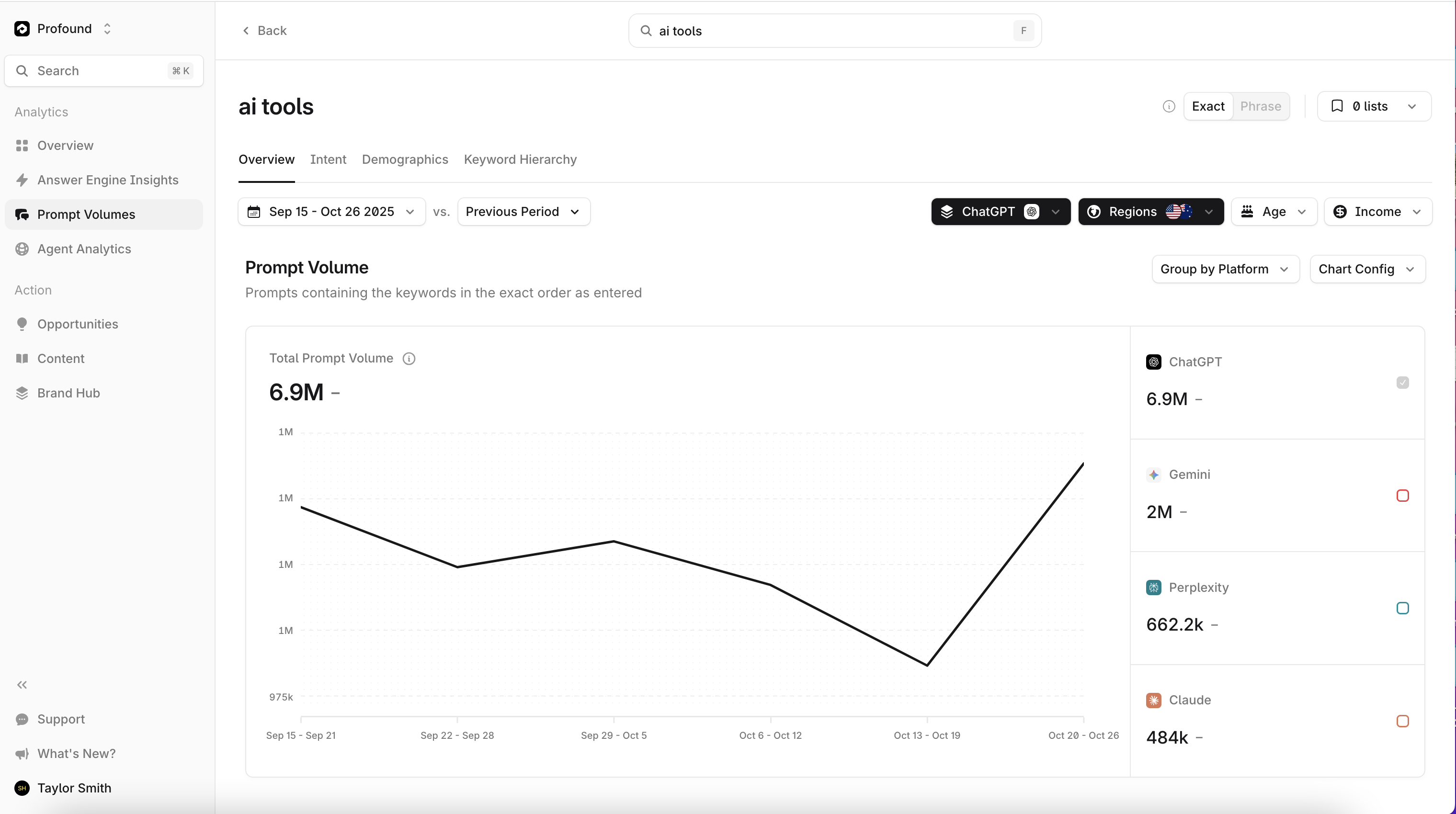
The Prompt Volumes chart shows how many keyword matches were found in the prompt dataset.
You can adjust the visualization using the Chart Config controls above the chart. The chart can be displayed as either a line or bar chart, and you can group results by platform, age, or income.
Relevant Prompts
The Relevant Prompts table lists the prompts included in your results. This provides a more granular view of the specific questions passed to answer engines that contain your keyword.
Similar Keywords
The Similar Keywords table displays keywords that commonly appear in similar prompting patterns. You can select any keyword in this list to run a new query for that specific term.
Intent
The Intent tab displays a chart that shows the share of conversations by intent, based on a representative sample of user conversation data over the last 90 days. Profound classifies intent behind a prompt as informational, commercial, conversational, or generative (requests to create content).
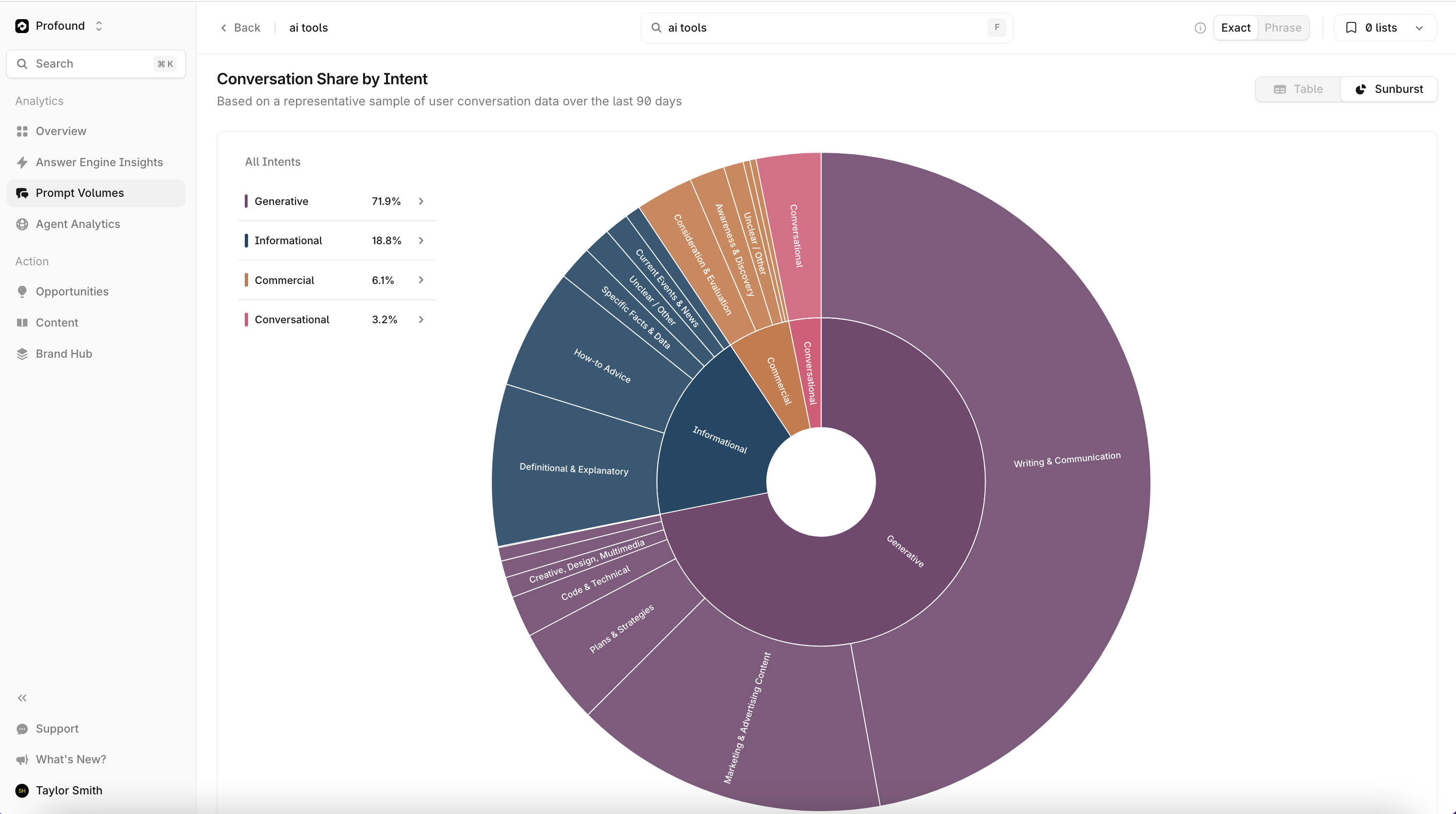
You can switch between the sunburst chart and a table view using the toggle above the chart.
Demographics
The Demographics tab displays the Prompt Volumes keyword query results broken down by region, age, and annual income.
Region
The Region chart is a heat map showing the volume of prompts containing the queried keyword across geographic regions. A table to the right lists the exact prompt counts for each region included in the query.
Age
The Age chart groups prompt results by age ranges. You can view this data as either a bar chart or a table using the toggle above the chart.
Annual Income
The Annual Income chart groups prompt results by income ranges. You can view this data as either a bar chart or a table using the toggle above the chart.
Keyword Hierarchy
The Keyword Hierarchy tab contains an interactive hierarchy chart. The queried keyword is the head of the chart. Subsequent levels are expanded keywords, and the corresponding prevalence in the results.
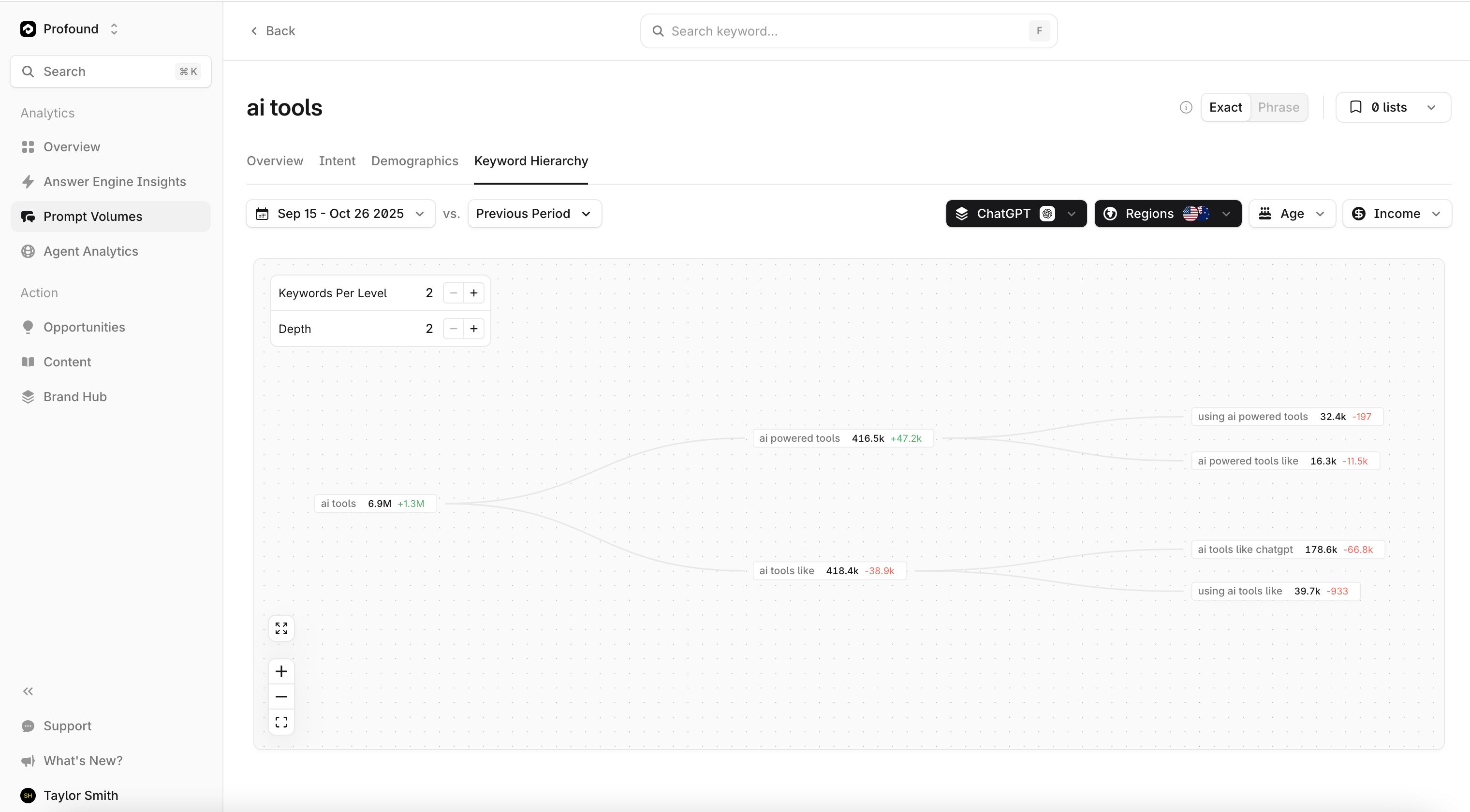
You can adjust the amount of keywords per level and depth of the hierarchy using the number stepper on the left side of the chart.